
Tutor guide
Getting started as a tutor on Teach Champs
Create your account, complete the details families need, set your teaching hours, and finish the checks required for a public tutor profile.
Before you begin
Have a clear profile photo, a short tutor headline, your education and credential details, your preferred lesson rate, and the weekly hours you can reliably teach.
1. Create your tutor account
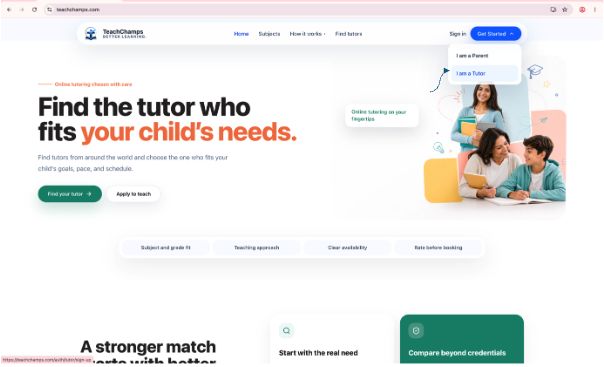
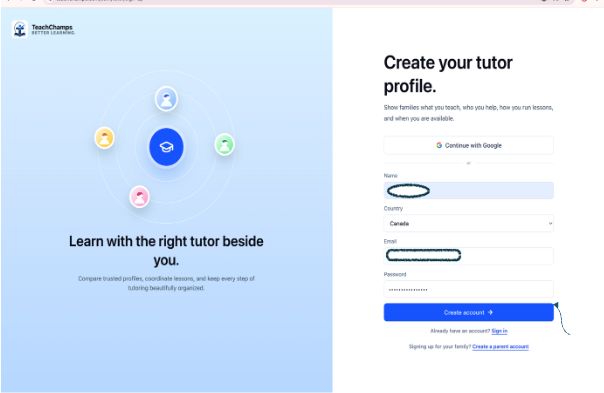
Visit Teach Champs and choose Get Started, then I am a Tutor. You can create an account with Google or enter your name, country, email address, and a secure password.
2. Verify your email address
If you sign up with email and password, open the verification message from Teach Champs and follow the link. Email verification is required before you can sign in and continue setting up your tutor account.
If the message does not arrive, check your spam or junk folder and confirm that the address you entered is correct.
3. Complete your tutor profile
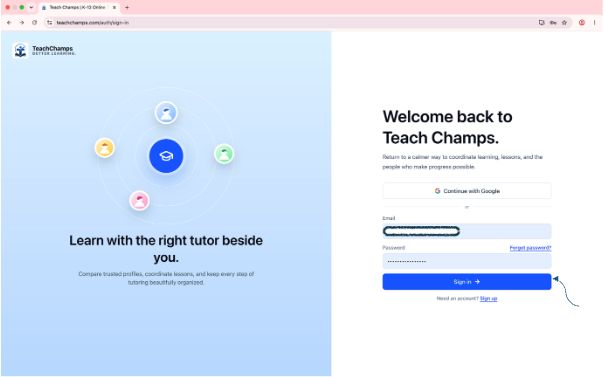
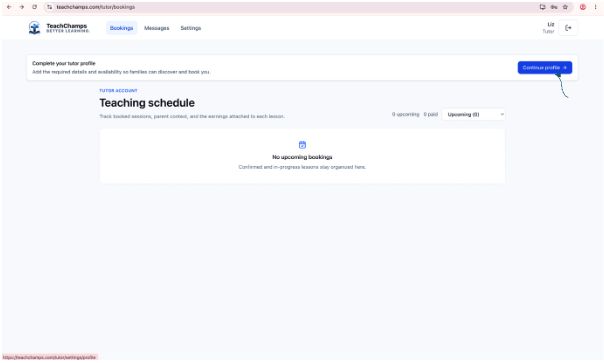
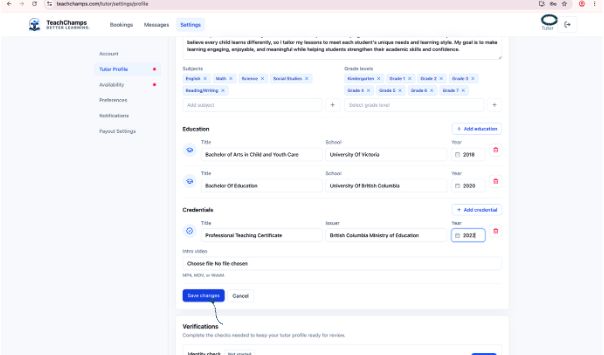
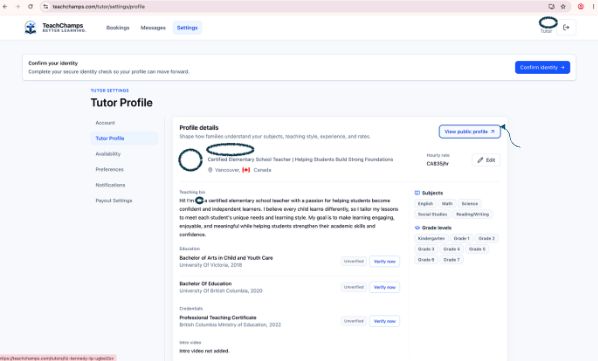
After signing in, use Continue profile from your tutor bookings page. Your profile should help families understand what you teach, who you support, and how you approach lessons.
- Add a clear, friendly profile photo.
- Write a concise headline and profile overview.
- Set your lesson price and select the correct currency.
- Choose the subjects and grade levels you teach.
- Add your education, teaching experience, and relevant credentials.
Review the details for accuracy, then select Save changes.
4. Set your teaching availability
Open Availability from Tutor Profile settings. Add the weekly hours you can consistently teach, confirm the displayed time zone, and use date-specific hours when a particular date needs a different schedule.
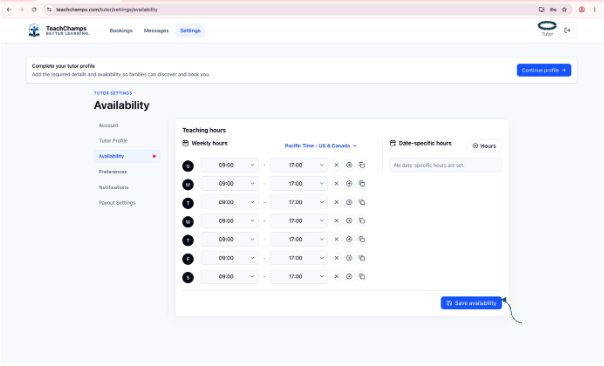
Select Save availability when your teaching hours are correct. Keeping this current helps prevent families from trying to book times you cannot attend.
5. Upload supporting documents
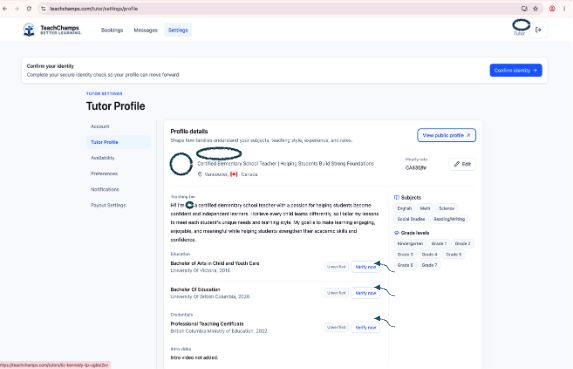
Return to Tutor Profile and upload proof for the education and credential items that require it. Use clear, readable files that match the details entered on your profile.
Teach Champs reviews submitted proof before verified education or credentials appear as verified on your public profile.
6. Complete your identity check
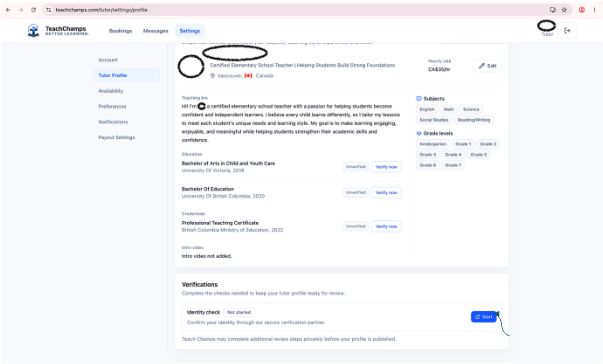
Once the profile details needed for visibility are complete, start the identity check from the action shown in your tutor account. The secure hosted flow will guide you through the required steps and may ask you to continue on a phone.
Use your current legal identity details and complete the flow in one sitting where possible. If your account shows that the check is already in progress or under review, resume or wait for the next action instead of starting again.
7. Prepare for profile review
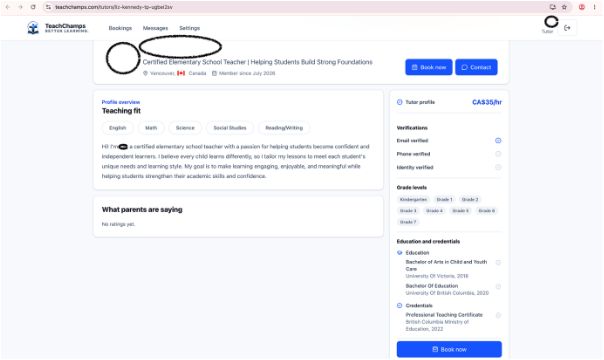
When your profile, availability, proof uploads, and identity check are complete, review your profile as a parent would. Make sure your subjects, grades, lesson price, experience, and teaching approach are easy to understand.
Teach Champs will make the profile available to families after the required review steps are complete. Keep an eye on your tutor account for the single next action that needs your attention.
Ready to teach?
Build a profile families can understand.
Create your tutor account, add the details that show your fit, and choose the hours that work for you.
Create your tutor account